How to get a device’s tap location?
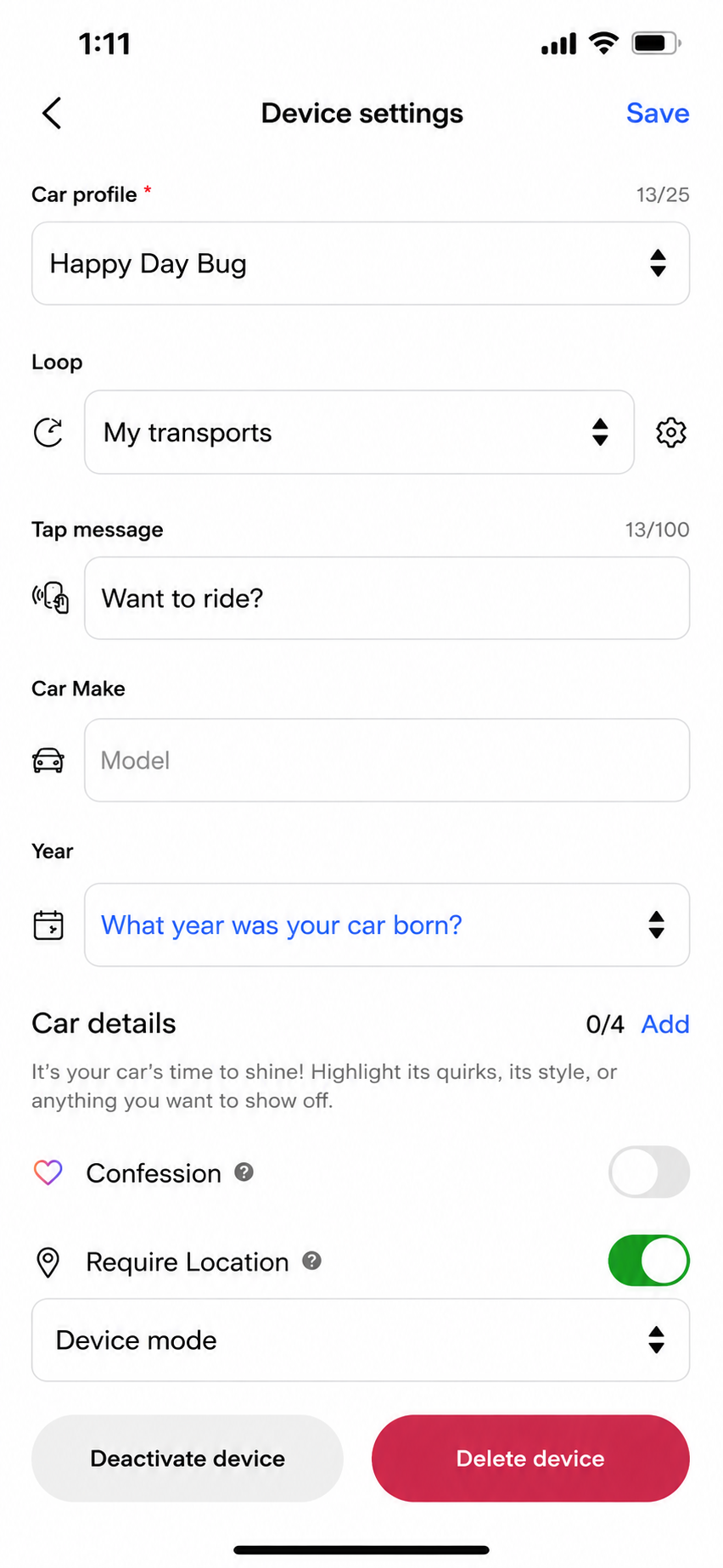
To see where your device is tapped by someone, you must enable this feature from device settings:
- From the Devices tab, find the device whose tap location you want to see, and click the right arrow against its name to access its profile.
- Click Edit in the top right corner to access device settings.
- Towards the bottom of the settings page, enable Require Location.
- Click Save in the top right.
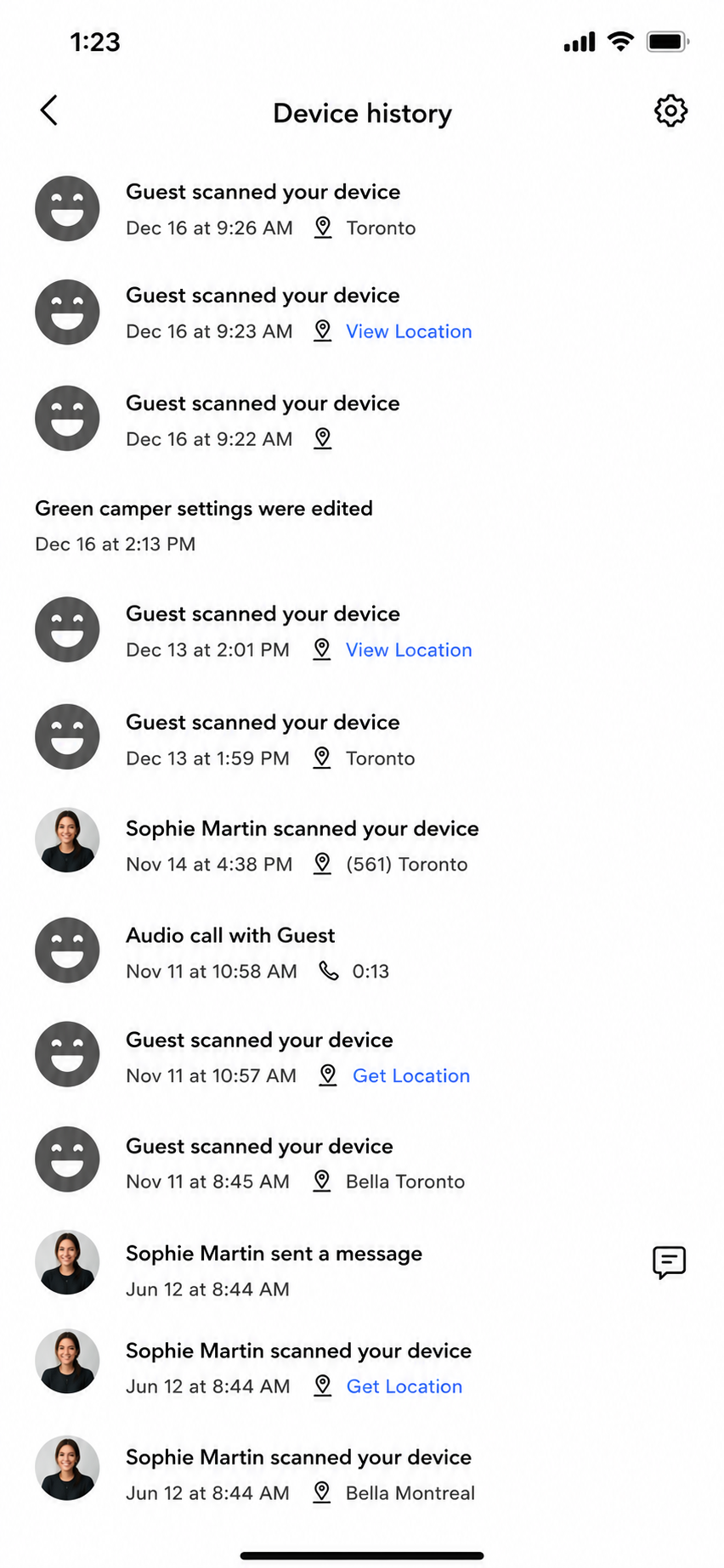
Thereafter, when someone taps on this device, they will be asked to share their location. If they allow, you will see their precise location. If they deny, you will see an estimated location. In both cases, the tap location will be available in the device history. To access the device history, from the Devices tab, click on History in the top, and then on the desired device in the list. Please note that:
- When the finder allows location sharing: You will see their location accurate to within a few meters.
- When the finder denies location sharing and they are connected to a Wi-Fi network: We estimate their location from their IP address. This estimate is pretty good, e.g., correct to within a city block.
- When the finder denies location sharing and they are connected to a cellular network only: We estimate their location from their IP address. This estimate, however, is often unreliable because cellular network service providers frequently associate their clients’ devices’ IP addresses with their own headquarters, which means the location estimated from the client device’s IP address can be in a different city from where the device is. In other words, unreliable.