Keep me in the Loop! 🤩
Our products come in 100% plastic free packaging!

♻️ How to Recycle Your Device: https://www.cuemill.com/products/weee


When you setup a new device, it is considered in the associated mode, meaning it is associated with something, for example, a Disc or Window Tag device is associated with a dwelling, a Car Tag is associated with a car, or an Owner’s Tag or Puck device is associated with a pet, person, or thing.
Certain additional device modes are available to control the device’s lifecycle.
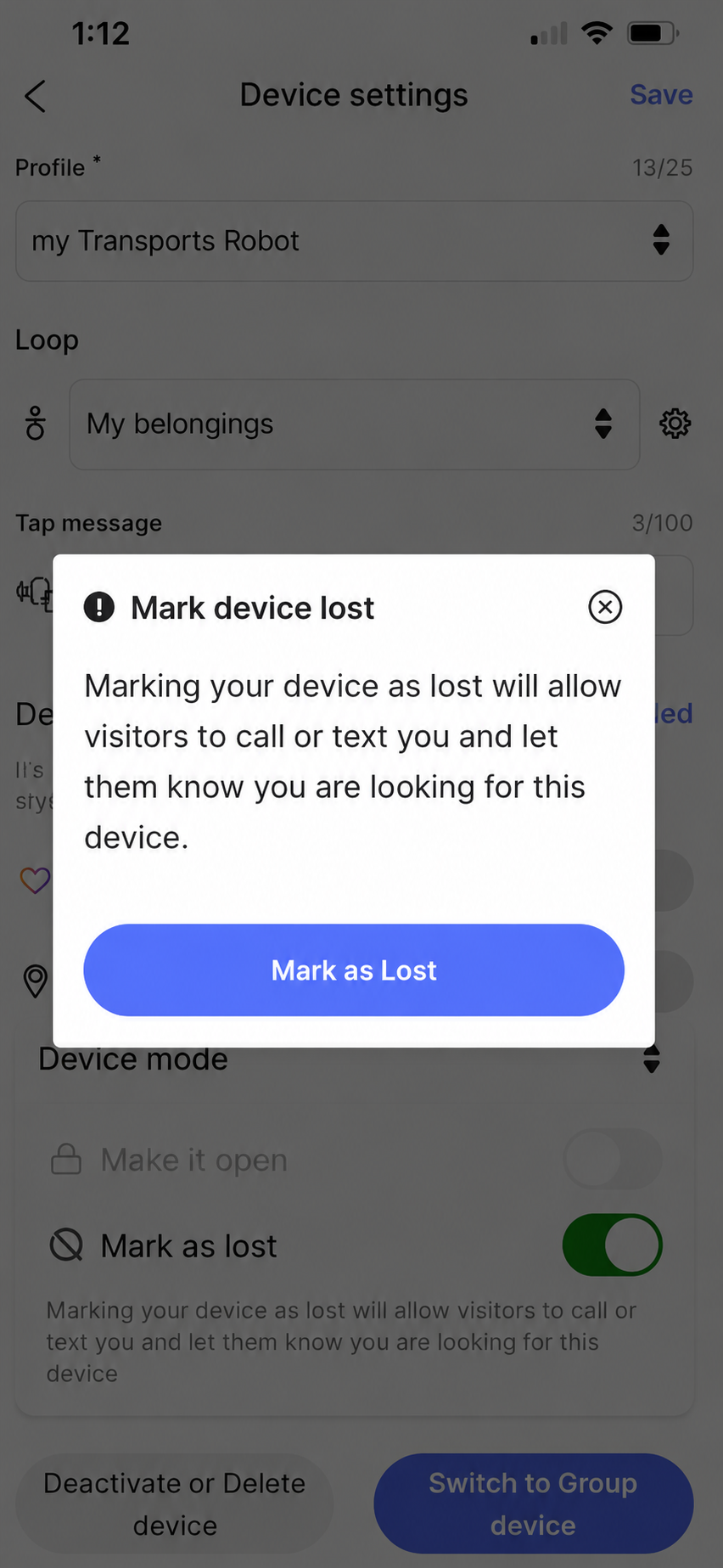
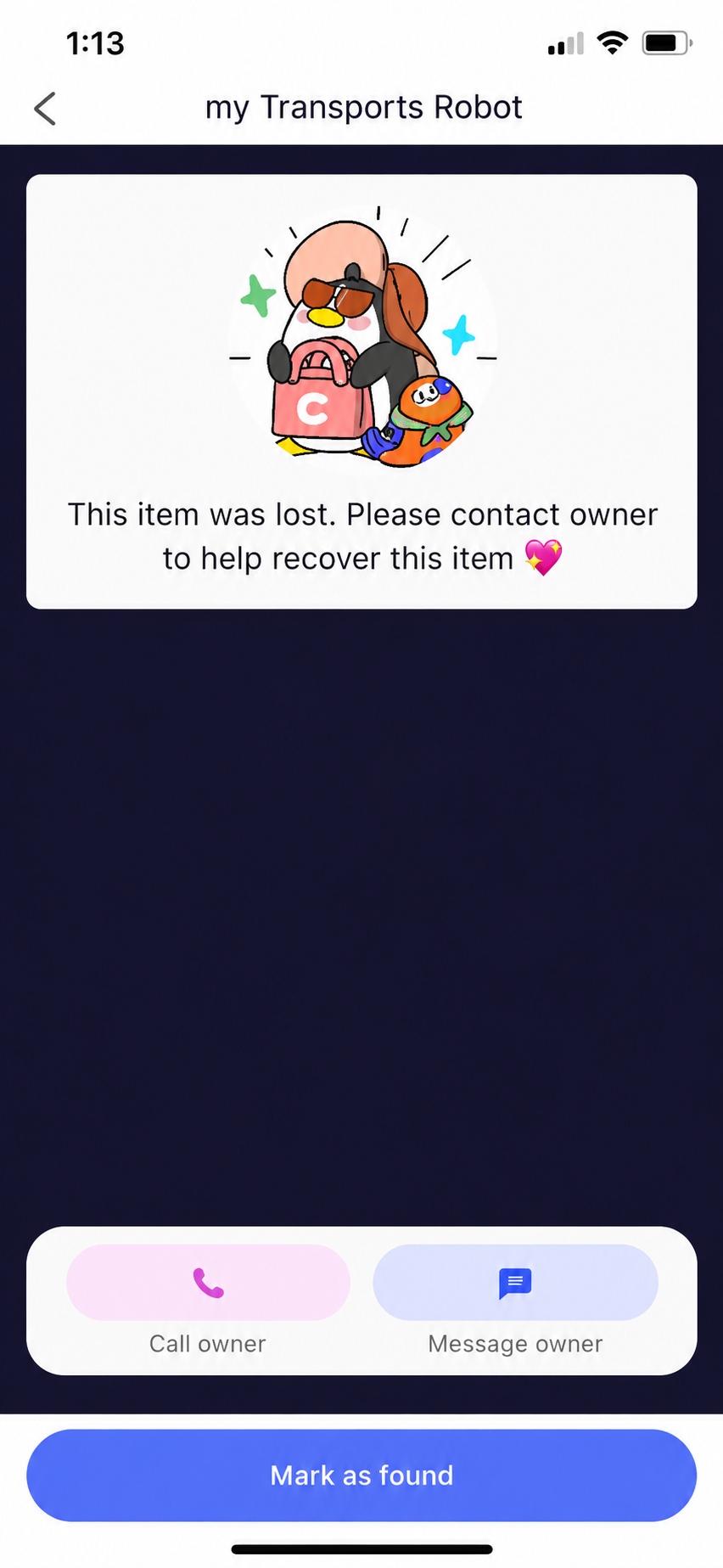
Let’s say you attached a Puck device to your coat, which you forget at an expo cloak room. To aid in its recovery, you can mark this device as lost.
Thereafter, when a finder taps on this device, they’ll see a specially formatted Activation Screen making it immediately obvious that you’ve marked the object as lost and are actively seeking its return. The finder can contact you via messaging or voice call.
In case, you end up finding your lost object, you will find this device in Lost devices, which you can Mark as found start using it again.
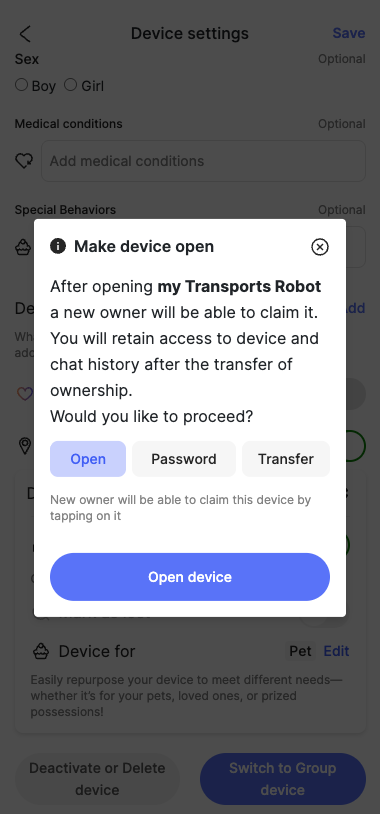
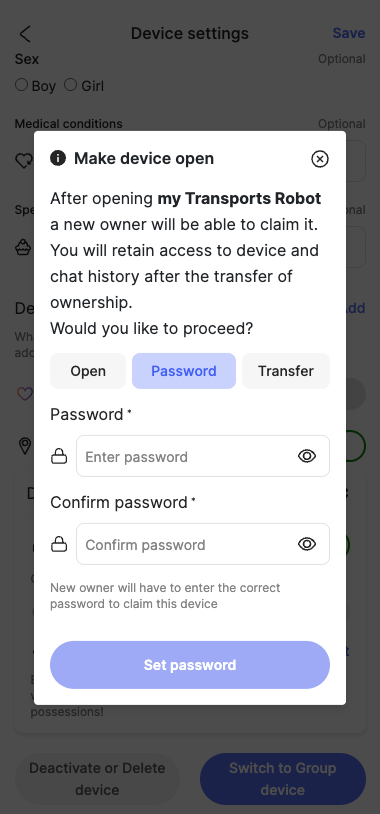
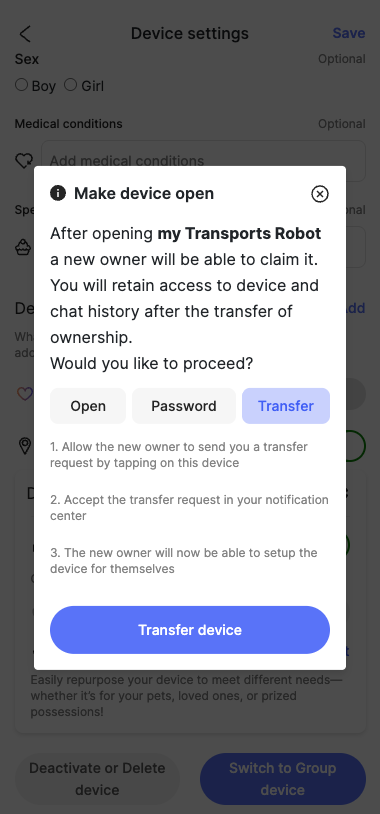
There may be times when you want to gift or sell something with which you had associated a Loop device, for example, you might have associated a Car Tag with your vehicle which you now want to sell, or an Owner’s Tag with your check-in luggage which you want to give away to a friend. You can transfer ownership of the device along with the object. This can be achieved by putting the device in Open mode.
Thereafter the new owner can tap the device to own it or to request transfer of ownership. In case, you end up not selling or giving away the object, you will find this device in Inactive devices, which you can associate with an active Loop to start using it again.